

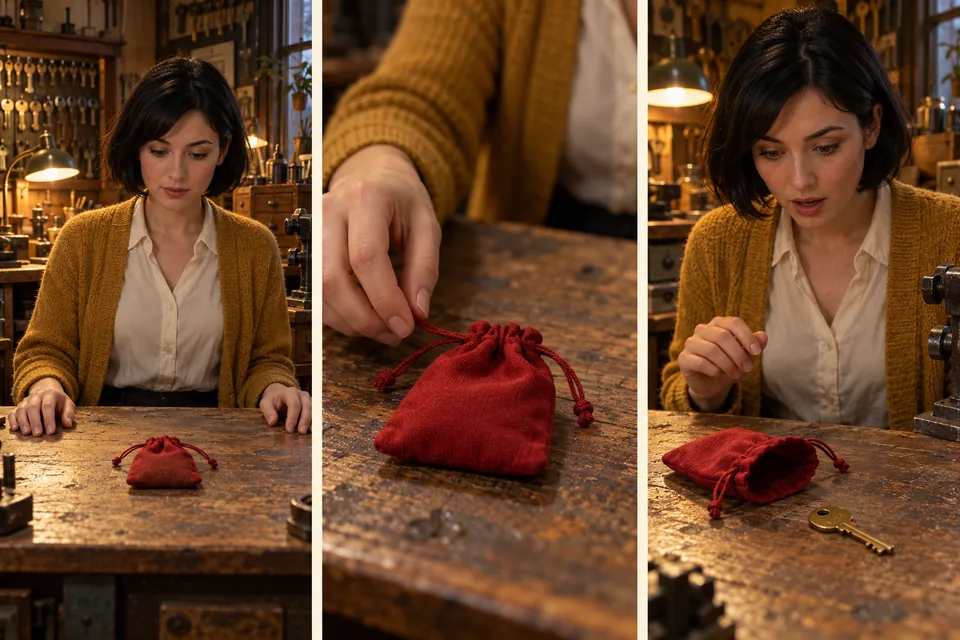
1. Write one reveal and its prop states
Premise: a locksmith finds an old key in an unexpected pouch. One adult character, one workshop, one wardrobe and three shots keep the first experiment manageable. Aim for three five-second clips; the edited duration can change after trimming.
| Shot | Start | Visible action | End |
|---|---|---|---|
| A: notice | Pouch closed on bench; key hidden | Character notices the pouch | Hands still away from it |
| B: open | Same closed pouch | Right hand opens it and puts one key beside it | Pouch open; key visible on bench |
| C: react | Open pouch and key in their established places | Character looks at key, then toward the door | Objects stay put; unanswered reaction |
Use the storyboard workspace to keep shots together, or start with a brief in the creative assistant. Build references before purchasing all three videos.
2. Ask for a plan that can be checked
Plan a three-shot AI microdrama pilot in 9:16, about 15 seconds in total. Do not generate paid images or video yet; return the script, reference list and continuity table first.
Story: a fictional adult locksmith discovers one old brass key inside a red fabric pouch and looks toward an unseen visitor.
Character: about 30, short black bob, mustard cardigan, ivory shirt. Same appearance and wardrobe throughout.
Set: one small warm-lit workshop, one wooden bench. Keep camera direction on the same side of the bench.
A, 5 seconds: medium view, she notices the CLOSED pouch; key remains hidden.
B, 5 seconds: close view, her RIGHT hand opens the pouch, removes ONE key and places it on the bench to the pouch’s right.
C, 5 seconds: medium close view, OPEN pouch and key remain in place; she looks from key to the doorway. No new person enters.
No dialogue, on-screen text or additional props. For each shot list the start state, action, end state, reference images and one continuity risk. Do not claim the references guarantee identity or motion.
The planning conversation itself can use Credits. “Do not generate” prevents the requested production step; it is not a promise of a free chat.
3. Approve references, then produce the difficult shot first
Create an approved character image and a workshop reference in image creation. Prepare a closed-pouch state and an open-pouch-with-key state. Keep the original references attached to the relevant shot rather than relying on similar text descriptions. The reference-image guide explains their roles.
Review each still for face, cardigan, key count, pouch opening and screen direction. Then test shot B first: it contains the hardest hand-and-object interaction. If opening and placing are too complex for one clip, simplify the action or split it and revise the timeline before generating the rest.
In video creation, use a supported image/reference mode and check its actual limits. A storyboard image is not automatically a video input. Select the approved frame explicitly. Where start/end frames are supported, verify both and review the motion between them; matching endpoints do not prove a sensible action.
After B is accepted, use its actual final state to prepare C. Do not silently replace a successful shot’s reference while generating another.
4. Review adjacent shots with a targeted correction
Compare A’s last frame with B’s first, then B’s last with C’s first. Check the actor’s face and clothes, which hand touches the pouch, the pouch opening, the key’s count and location, and the camera side. Watch each full clip as well; still-frame agreement cannot reveal a mid-shot hand or face change.
Revise ONLY shot C’s starting image using the accepted final frame of B as the state reference.
Keep the same adult character, mustard cardigan, ivory shirt, workshop, lighting and camera side. The red pouch must be OPEN on the bench. Keep exactly ONE brass key on the bench to the pouch’s right, matching B. The character’s hands do not hold the key.
Change only her gaze from the key toward the doorway. Do not add a visitor, dialogue, lettering or another key. Return a revised still for review before any video generation.
The cover’s middle panel shows a moment before the opening, so it cannot establish that the key was actually removed. That missing action must be verified in B’s video. This is why a beautiful storyboard is only the start of continuity work.
5. Assemble a pilot before expanding a series
Download the accepted clips and assemble them in an external timeline editor. Trim redundant pauses, inspect the two cuts, and decide on recorded/licensed sound separately. This article does not promise automatic end-to-end assembly or dialogue synchronization.
Does 3 × 5 seconds guarantee a 15-second finished episode? Only before overlaps and trimming. Check the exported duration.
Is a consistent face enough? No. A misplaced key can break the story even when the face matches. Keep state notes beside the approved shot versions.
Can I use a real person? Use your own authorized references and permission for the intended use. The example uses an invented adult.
Check account eligibility, model settings and Credits estimates before each generation. Save the reference pack, editable plan and final files. For a simpler sound experiment first, try the single-shot AI ASMR guide.
A starter message is filled in for you to edit and send. Chat is billed by usage; clear image requests generate directly and use Credits.