
SPARKLES / All tools
Another angle. More to discover.
Move around a character or product, or transition between two outfits. Bring clear references and explore the result one frame at a time.
Updated
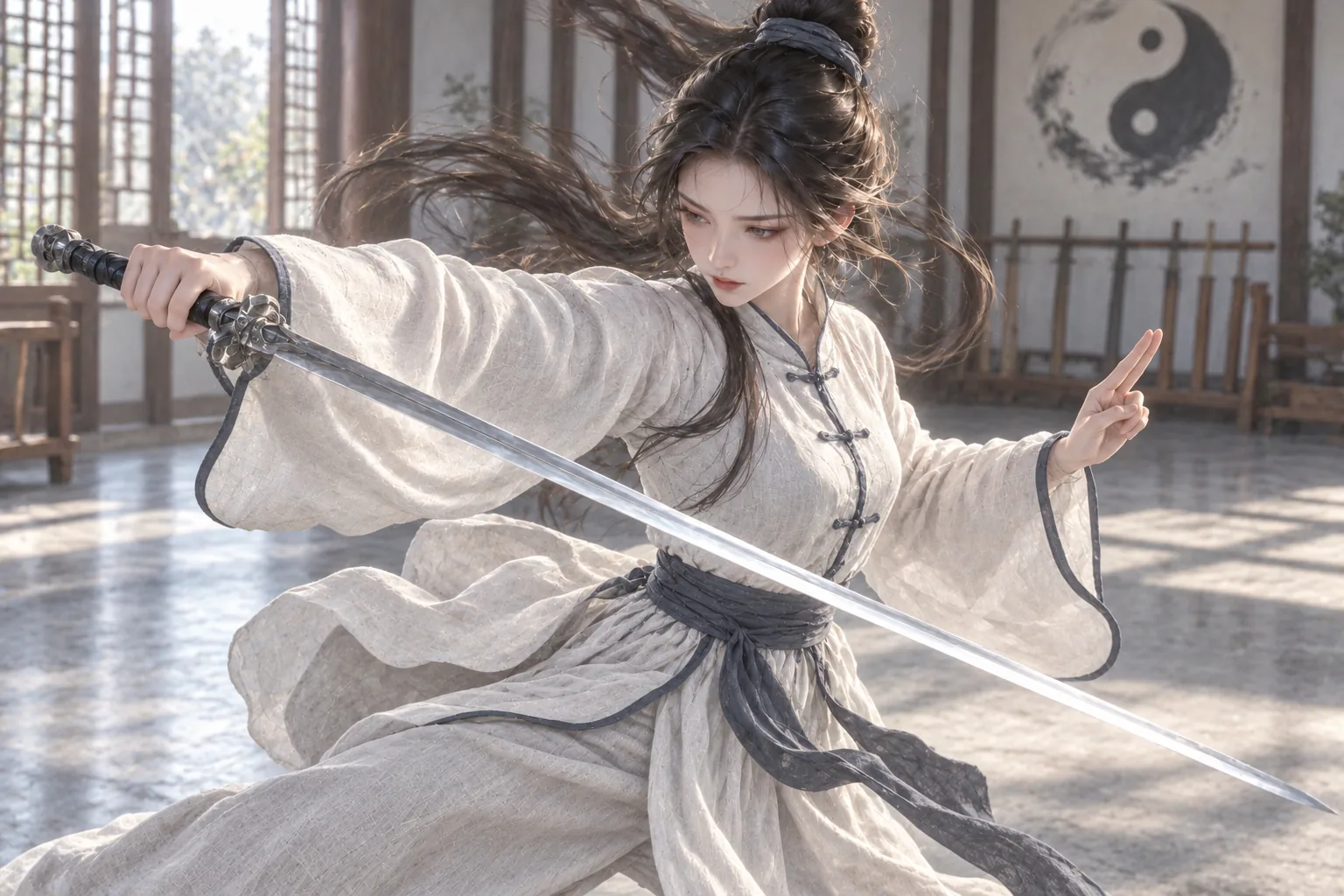 01 / Starting look
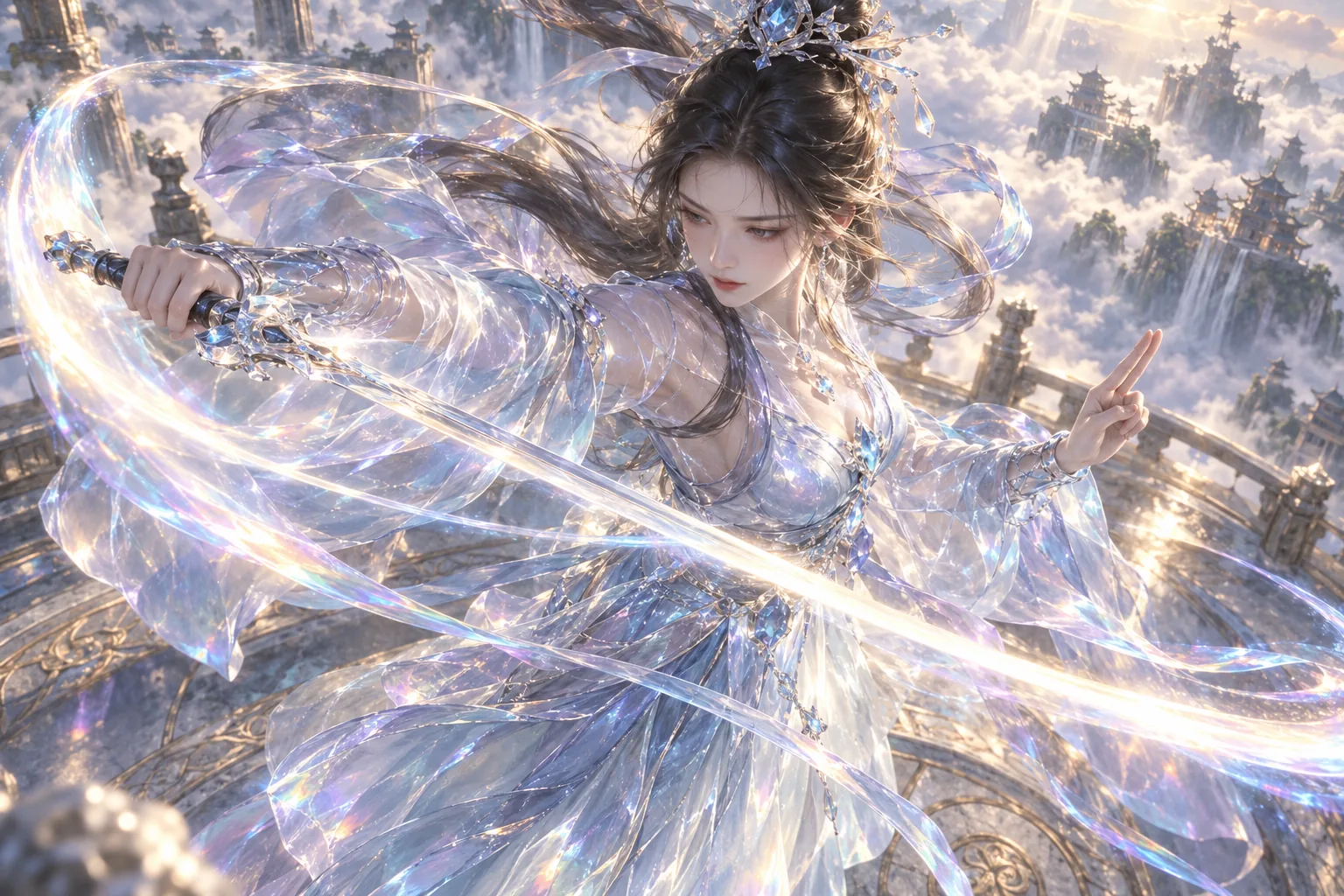 02 / New look
- Generation
- MiniMax H3 · 768P / 2K · Seedance 2.0 · 720P / 1080P · 5s
- Input
- 1–9 · PNG / JPEG / WebP · 16 MB
- Exports
- MP4 / PNG · 30 days
- Price per video
- Use the server quote before submission; video has no subscription discount.
Video templates
See what you can make
Outfit transitions 5.2s
The ceiling-fan wipe
One overhead shot, one foreground wipe, two tailored looks.
Outfit transitions 5.2s
A ribbon changes the look
A lavender silk ribbon carries a charcoal-to-lilac outfit transition.
Outfit transitions 5.0s
From sword practice to crystal
Two ordered references take the same character into a crystal outfit and cloud palace.
What you can make
Preview a product concept
Inspect AI-imagined side and rear views before choosing images for a concept presentation.
Explore a character or object
Compare views of a character, collectible or other single subject and save useful angles.
Open tool
How to use it
Standard 360°: Open 360° views and sign in. Select several library images, upload a batch, or combine both. Front, back and side views of one subject need no sorting.
Choose Orbit Light (MiniMax H3: 768P / 2K) or Orbit Plus (Seedance 2.0: 720P / 1080P) for a silent five-second video.
Choose Standard 360° or Outfit change 360° in the dedicated studio. Select the old look and background first, then the new look and background; you can swap them. Keep the full 360° camera orbit while particles transform the clothing and the background changes with it. The pose follows image 1.
Review the Credits estimate and optionally request a completion email. If Credits are insufficient, use the top-up dialog.
You can leave while the job runs. Find it under Your creations → 360° views; completion emails go to your account’s bound email address.
Drag, use the slider or arrow keys, or play the video. Download the original MP4 or the current frame as a full-resolution PNG.
Independent 360° creations stay in 360° views and do not create a canvas automatically. Choose Add to canvas when you want to arrange them there. You can still generate a 360° view directly from a canvas image.
AI 360° image view and interactive product rotation
The 360° studio turns a still image into an interactive sequence of views. Use the dedicated workspace to upload and generate, or create and display the same views inside an infinite canvas. Choose Orbit Light (MiniMax H3: 768P / 2K) or Orbit Plus (Seedance 2.0: 720P / 1080P) for a silent five-second video. Particle outfit change uses exactly two ordered outfit images of the same person.
At a glance
Common questions
How are Credits calculated?
Quotes vary by model, resolution and reference count. H3 single images disable Context IR; multiple images enable it, with its fee and extra-reference fees included. Seedance shows the estimate and reserved balance, then settles actual supplier usage and returns the unused portion. Video has no subscription discount.
Can I use it without opening a canvas?
Yes. The dedicated workspace supports upload, generation, viewing, history and downloads. A canvas is added only when you choose Add to canvas.
Will refreshing buy another video?
Refreshing or reopening reads the existing job. Resuming frame processing reuses the saved video. Starting a new generation is a separate paid task.
Does viewing or downloading reduce video quality?
The video is not re-encoded or downsized. The preview decodes the original MP4 and preserves the full portrait or landscape composition. Frame downloads use lossless PNG at the original resolution.
How does AI handle image order and blur?
Standard 360°: H3 multiple images use Context IR; Seedance uses native multimodal reference generation. Both treat images as views of one subject, not ordered keyframes. Prefer clear, consistent views; blurred or occluded views only provide supporting evidence. Hidden details, a complete circle and seamless endpoints are not guaranteed.
Which image comes first for an outfit change?
Selection or upload order defines image 1 as the old outfit and background, and image 2 as the new outfit and background. Use exactly two looks of the same person and swap them before submitting if needed. End in the new outfit and new background without restoring either starting state.